-1.png?width=100&height=75&name=original-tar-ruler%20(1)-1.png)
Instead of making updates or creating new entries item-by-item directly in your Price Book, you can now use the export and import options to more easily make bulk changes and updates.
If you don’t see these options in your Price Book, contact your Account Manager to get things set up!
The export and import options are available for Items/Categories, Addons, and Cost/Expense.
The process is the same for each section, although the data in the documents are different. The process is outlined below, but first - some important notes:
- If you are making any changes to existing entries in your Price Book, export the data first and work from that, do not use the templates above.
- Do not make changes to the names/titles of entries if you are working from the exported Price Book data.
Here is an overview of the steps, the details are below:
Prepare the document for upload.
The first step is to organize and format the data to import. If you already have items/addons in your Price Book, you can export the current list and then make changes and/or add new entries to that document. Click the Export button to get the .xlsx document (in the Items tab, you will select to export either the Items or the Categories).

If you don’t have any entries in your Price Book, or if you’re only looking to add new entries, you can use the following templates to import to the section you’d like:
- Items Import Template
- Item Categories Import Template
- Addons Import Template
- Cost/Expense Import Template
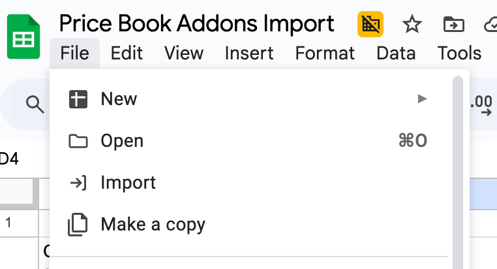
You’ll need to make a copy of the template to be able to edit the document and add in your data:
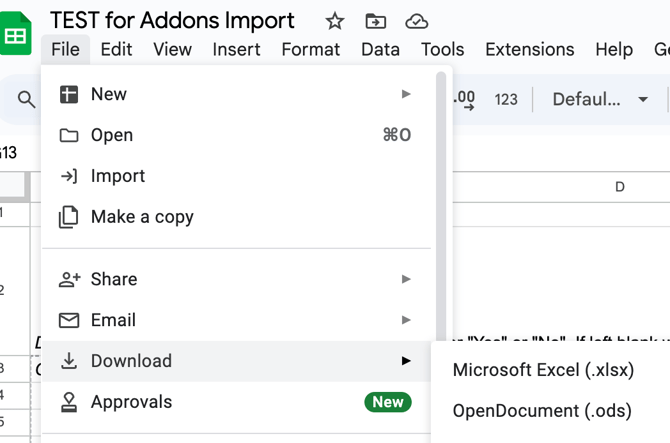
Once your document is formatted, you’ll need to download the file in the .xlsx format if you’re working from the template (if you downloaded the export first to make updates, it will already be in the correct file format).
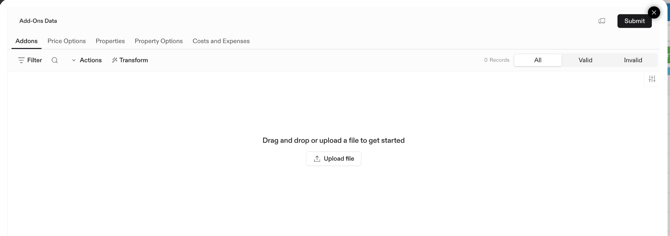
Upload the file.
Go to Admin>Price Book and select the tab where you’ll import the data: Items, Addons, or Cost/Expense. Click the Import button, then choose the file you want to upload for the import. For Items, select the option +Import Items - for Addons and Cost/Expense, you don’t need to select an option.

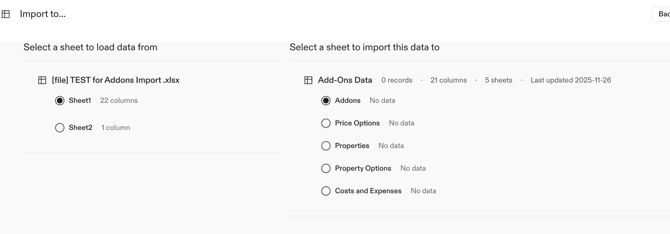
Review the sheet of the file you want to import, and the category mapping.
Once the data is extracted, you’ll be prompted to review and match the specific sheet/tab within the document that you’d like to import, and to which section. For example, if you are completing a Cost/Expense import, there are sheets within the document for the Cost/Expense, Employee Assignments, Subcontractor, and Profile Assignments. You can complete the import of multiple sheets/tabs at one time, you'll need to follow the directions below for each sheet.
The system will also have you review and make sure that each category from the source document is matched correctly to the corresponding category in the Price Book.
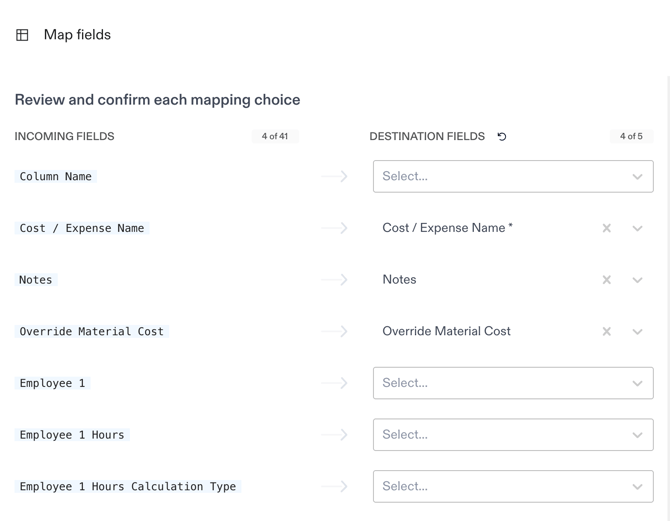
Make any line-specific adjustments you want to make.
Before the upload is complete, you can make any line-specific adjustments needed.
Review any invalid items.
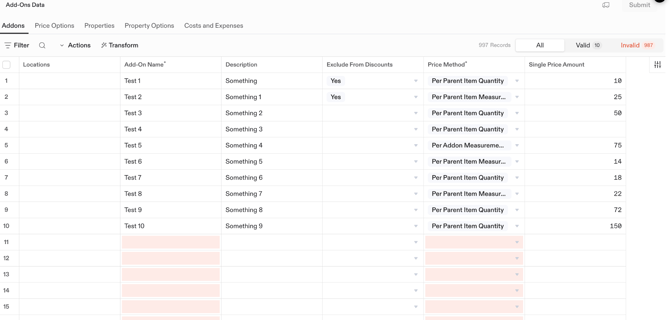
The system will automatically flag any issues with the import data under the Invalid Items tab. Check the Invalid Items for specific details on any required changes before the import can be completed.
If the issue flagged is due to empty rows in the sheet (see the screenshot below), go back to your import document and delete the empty rows, then try the upload again:
Submit for import.
Click Submit and the upload will be complete! You'll see all changes/updates reflected in Price Book.