-1.png?width=100&height=75&name=original-tar-ruler%20(1)-1.png)
Builder Prime is beyond excited to introduce Bolt Insights. Getting started is as easy as having a question you'd like answered. The video below walks through the first steps you can take to start benefiting from your new best friend, Bolt Insights.
Contents
Schedule Automatic Delivery of Reports
Basic Navigation
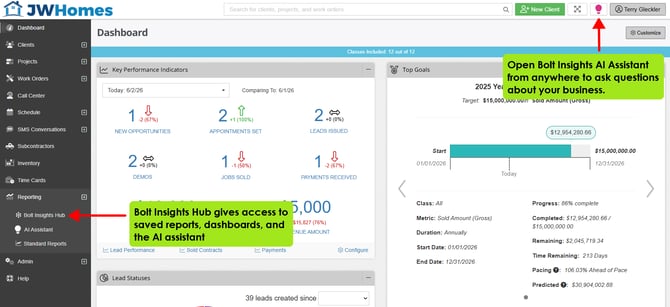
To open the full Bolt Insights Hub, navigate to Reporting > Bolt Insights Hub.
To open the AI Assistant, click the Bolt Insights icon at the top right of the screen or navigate to Reporting > AI Assistant.
Inside of Bolt Insights Hub, the tabs along the top keep your information organized
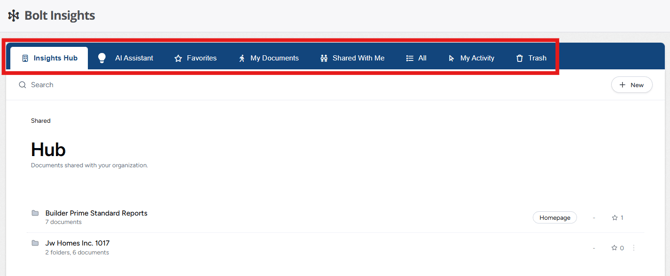
Insights Hub: Reports and Dashboards that have been saved and shared with the entire organization.
AI Assistant: Your dedicated operational assistant to ask questions and gather insights.
Favorites: Anything you've personally starred as a favorite report or dashboard.
My Documents: The reports and dashboards you have created.
Shared With Me: Reports and dashboards that have been shared with you.
All: All reports and dashboards that you have access to.
My Activity: Your personal audit trail of questions asked to the AI as well as dashboards and reports that were saved.
Trash: Reports and dashboards that have been archived. These can be restored if they were mistakenly removed.
Saving a Report
Once the AI Assistant has generated a report that you'd like to save and view in the future, you'll click the "Explore" button to open the editor.
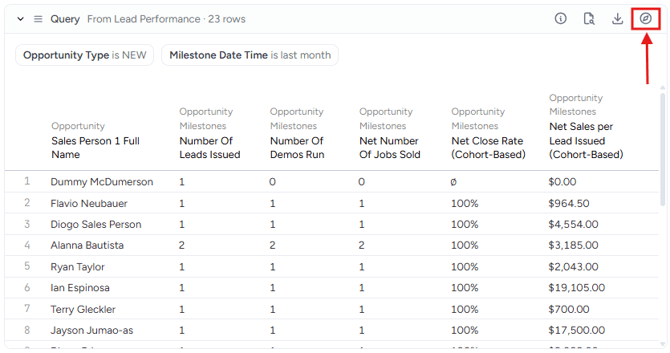
Inside of Explore Mode, use the AI Assistant to fine tune the report. When you're ready to save the report, you'll want to first rename the report by clicking the menu next to "Query" at the bottom left corner or by choosing "Tab" from the top menu and selecting "Rename".
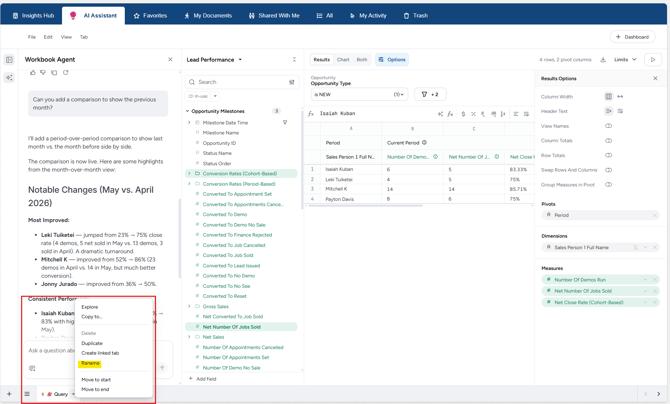
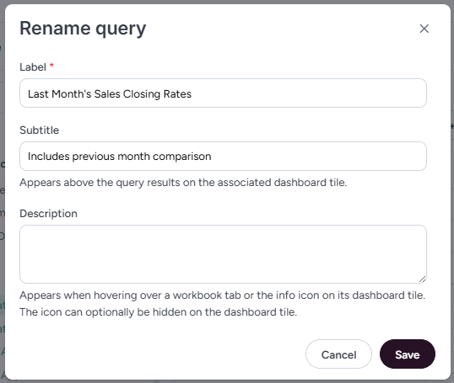
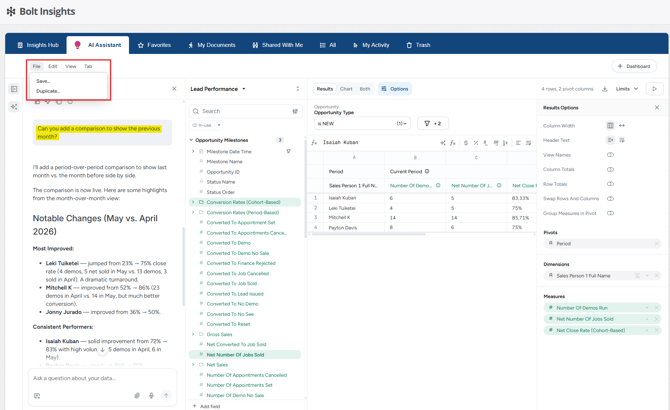
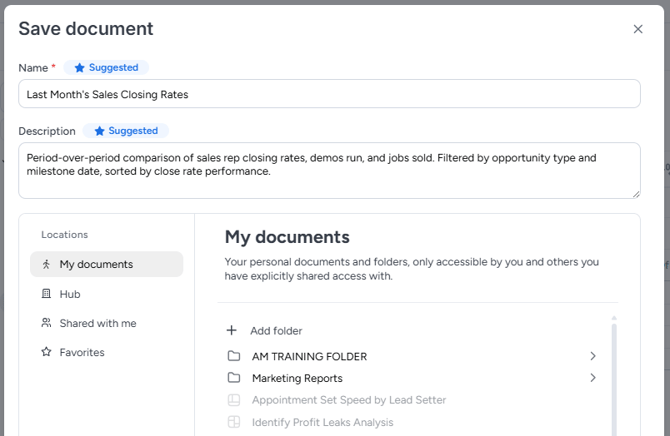
Once the report has been named and you're ready to save, click File > Save, where you will choose where to save the report.
Creating a Dashboard
Dashboards are perfect for saving a collection of reports. The only way to schedule delivery of a report is if it lives within a dashboard. The quickest and easiest ways are to ask the AI Assistant to build a dashboard or by using an existing report to create the dashboard.
Option 1: AI Assitant
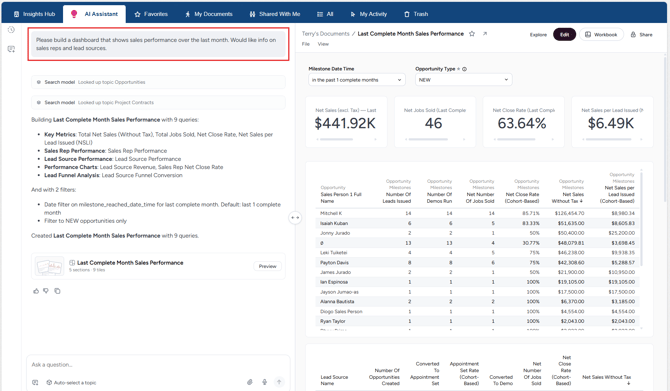
Use the AI assistant to describe what you need from a dashboard. It will pull together different reports and automatically generate and save a dashboard to your "My Documents" folder.
Option 2: From a Report
Create or open a new report (must be in explore or edit mode) and click the Dashboard button on the top right corner. 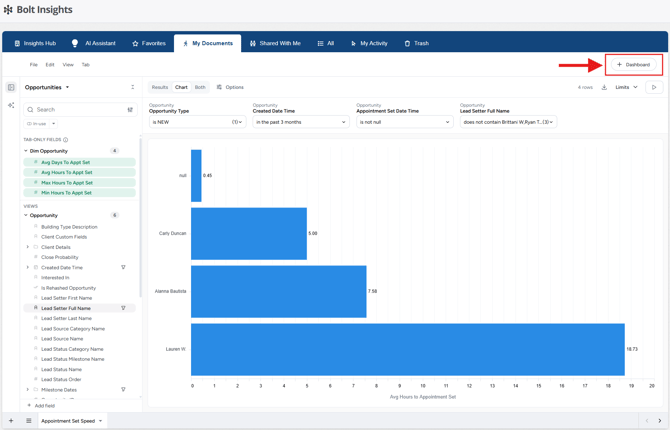
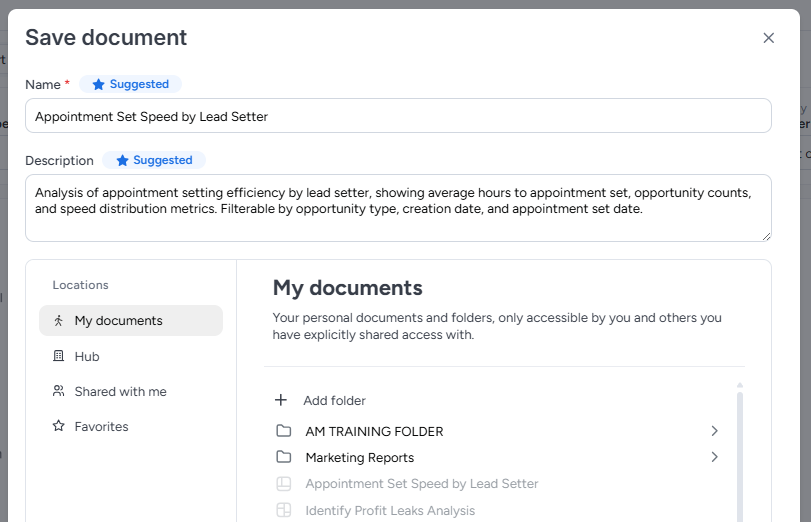
This will prompt you to name your dashboard and choose where to save it.
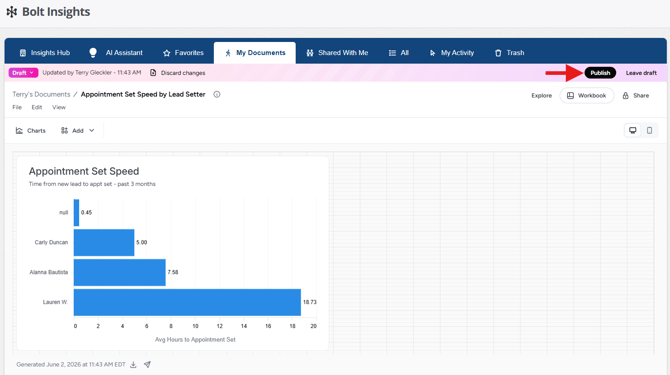
On the next screen, you can review the layout and make changes. Remember to click "Publish" in the top right corner to save any changes.
Adding Reports to a Dashboard
- Open the report you want to add to an existing dashboard.
- At the bottom left corner, click the menu next to the report name to open the menu and select "Copy to..."
- Copy the query ID.
- Open your dashboard and click "Workbook" on the top right corner.
- Click "Edit" on the top right corner to open edit mode.
- On the top left menu, click "Edit" and select "Import tab".
- Paste the query ID from the report to add the report to the dashboard.
- At the top right, select "Dashboard" to modify the layout and organization.
- Once finished, click "Publish" on the top right corner to save the dashboard.
Schedule Delivery of Reports
Scheduled delivery of reports happens at the Dashboard level. A report must be on a Dashboard in order to automate sending.
To schedule delivery of a report or an entire dashboard, first open the dashboard. Click file at the top left and choose "Deliveries & Alerts". From here, fill out the form to automate delivery of the report to any recipient of your choosing.