-1.png?width=100&height=75&name=original-tar-ruler%20(1)-1.png)
Contents
This feature works with personal (consumer) checks only. Business checks, government checks, money orders, and cashier’s checks need to go through your regular bank deposit.
Before You Start
Make sure your account meets these requirements:
- Builder Prime Payments must be activated on your account
- Mobile Check Capture must be enabled (contact your account manager or Builder Prime support to turn it on)
- The user depositing the check must have the appropriate permissions in Builder Prime
- You need a device with a working camera (phone, tablet, or desktop with webcam)
How to Deposit a Personal Check
Follow these steps to scan and deposit a personal check through Builder Prime.
Step 1. Receive the Check in Person
The check must be handed to you or your employee in person. Checks received by mail, left in a drop box, or left at an unstaffed office are not eligible for Mobile Check Capture. Those checks need to go through your regular bank deposit.
Important: You or your employee must be the one to scan the check. The customer cannot scan it themselves.
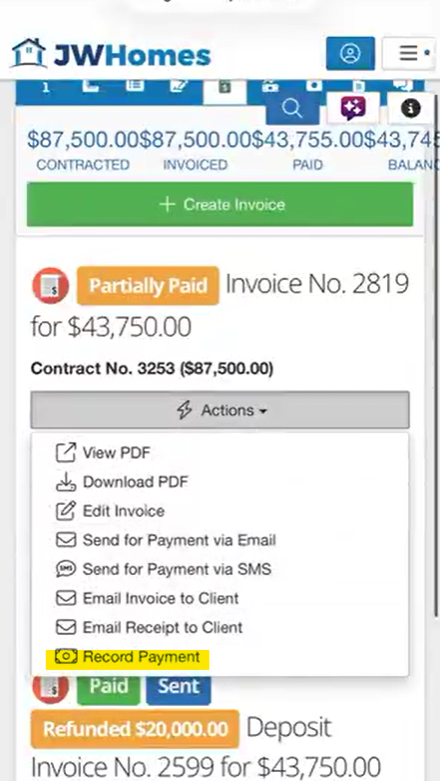
Step 2. Open the Job in Builder Prime
Navigate to the project that the check payment is for. Open the Billing tab, then click Record Payment.
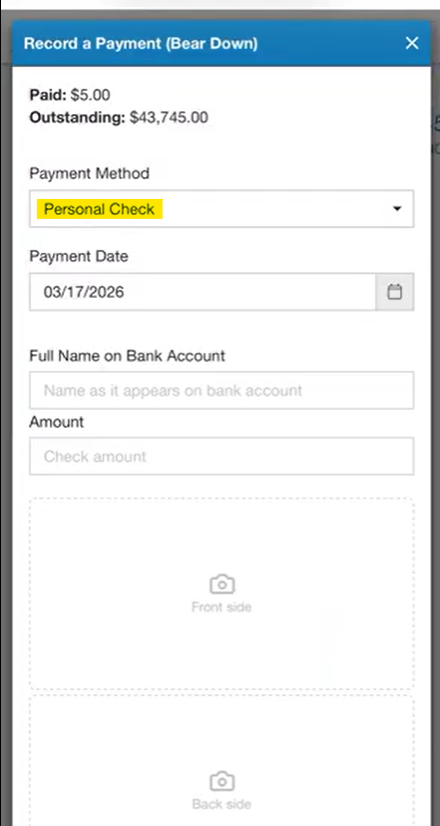
Step 3. Select Check as the Payment Method
In the payment dialog, select Personal Check as the payment method.
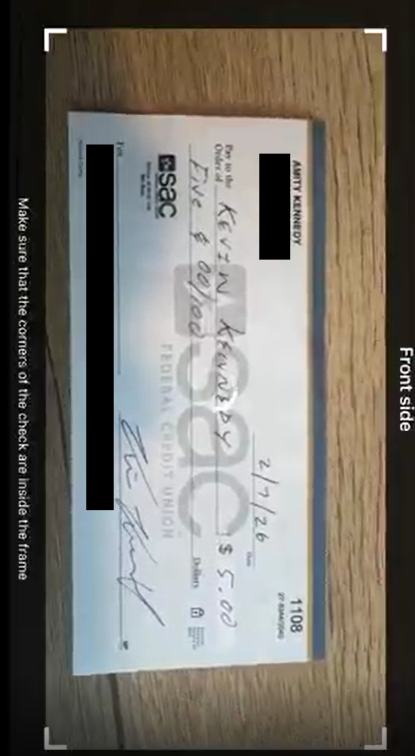
Step 4. Scan the Check
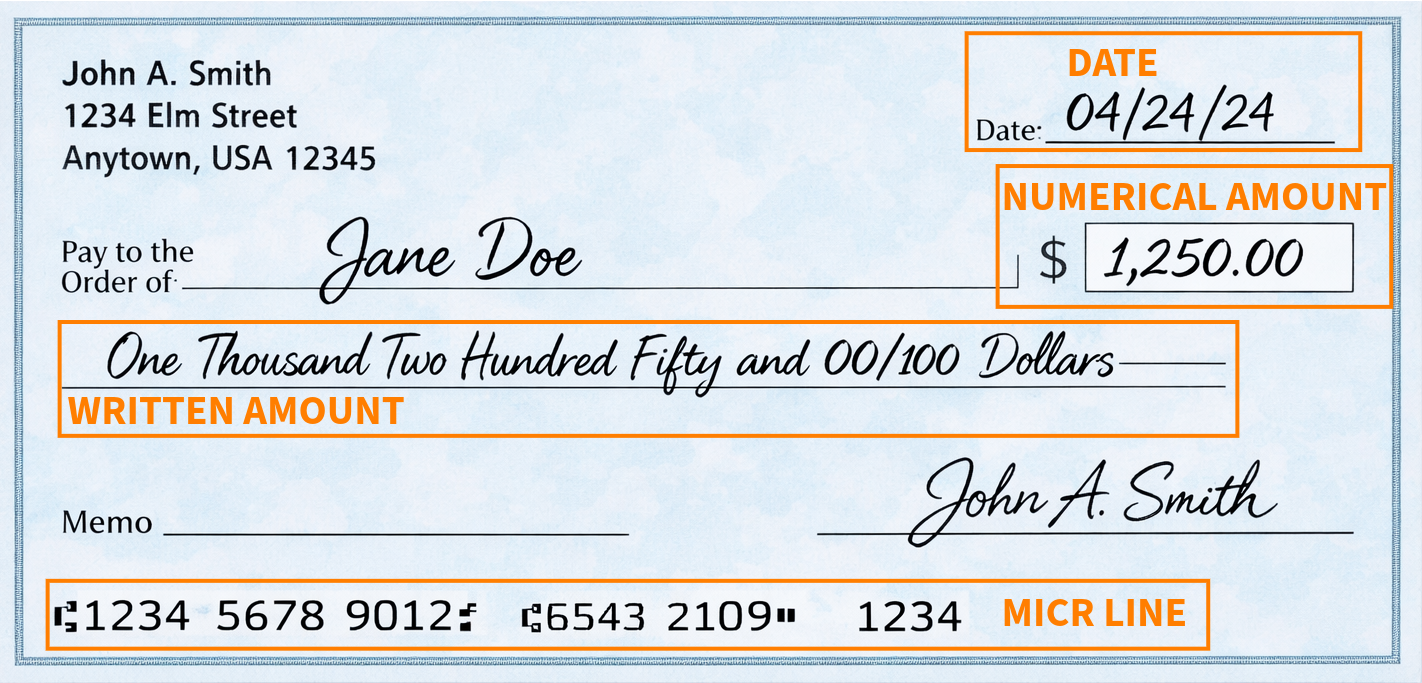
Your device’s camera will open. Position the check so it fills most of the frame and hold steady. The system will capture the image and read the check details automatically, including the date, dollar amount, and MICR line (the numbers along the bottom edge of the check).
The system checks two things on the dollar amount: the numerical amount (like 1,250.00) and the written amount (like One thousand two hundred fifty and 00/100). If those don’t match, or if the image isn’t clear enough to read, you’ll be asked to re-scan or manually confirm the amount.
Image acceptance rates are around 97%, so re-scans are uncommon.
Step 5. Confirm and Submit the Deposit
Review the scanned details. A notice will appear above the confirmation button letting the customer know their check will be converted to an electronic payment. This notice is required by Nacha (the organization that governs electronic payments) and displays automatically.
Once you confirm, the deposit is submitted. The payment links to the job and invoice automatically, so there’s nothing else to match up later.
Funds typically arrive within 2-3 business days.
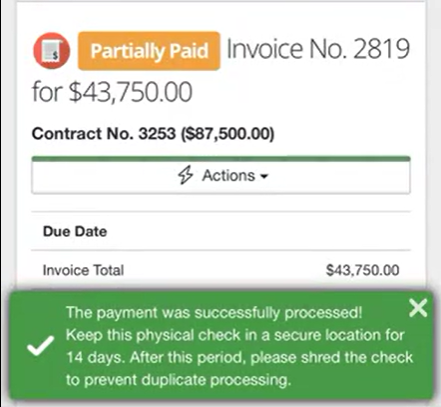
Step 6. Store the Physical Check
After scanning, mark the check as Electronically Processed (write it on the front of the check) and store it in a secure location. Do not deposit it at the bank or through a banking app. The system has duplicate detection built in, but the physical safeguard matters too.
Keep the check for a minimum of 14 days and no more than 60 days. After that, destroy it by shredding so the account information is unrecoverable. Keep a simple log of when checks were destroyed.
What Checks Are Eligible
Mobile Check Capture works with personal checks drawn on a U.S. consumer bank account, up to $25,000 per check. The check must be received in person by you or your employee.
|
Requirement |
Details |
|
Check type |
Personal (consumer) checks only |
|
Bank |
Must be drawn on a U.S. financial institution |
|
Age |
Less than 90 days old |
|
Maximum amount |
$25,000 per check |
|
How received |
In person (not mailed or dropped off) |
|
Who scans |
Your employee (not the customer) |
What Checks Are NOT Eligible
The following check types cannot be processed through Mobile Check Capture. These need to go through your regular bank deposit:
- Business checks (drawn on a business bank account)
- Government checks and insurance checks
- Money orders, cashier’s checks, and traveler’s checks
- Foreign checks (must be drawn on a U.S. financial institution)
- Checks older than 90 days
- Checks where the customer has opted out of electronic conversion
- Checks with a damaged or unreadable MICR line (the numbers along the bottom edge)
After the Deposit
Where Check Deposits Appear
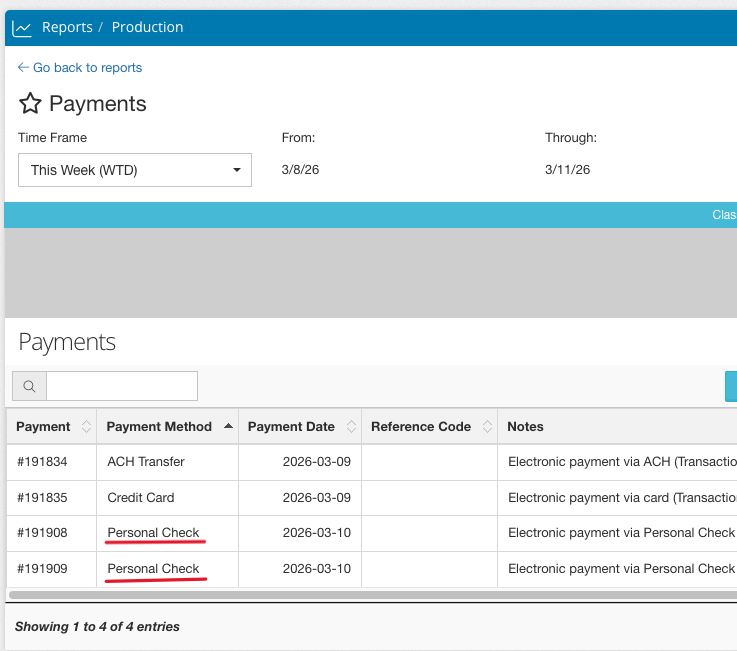
Check deposits show up alongside your card and ACH transactions in the Payments report. Everything is in one place, so you don’t have to cross-reference bank statements with your Builder Prime records to figure out which payment goes with which job.
Funding Timeline
Funds from a scanned check typically arrive within 2-3 business days. This is comparable to depositing through your bank’s mobile app, but with the added benefit that the payment is already linked to the correct job and invoice in Builder Prime. No manual matching required.
Check Returns
Just like a regular check, a scanned check can be returned if it bounces. Because Mobile Check Capture uses electronic processing, a return can happen up to 60 business days after settlement. Common reasons include insufficient funds, a closed account, or a stop payment from the check writer.
When a return happens, you’ll see it in your payment records along with a code explaining the reason.
Check Retention Requirements
After scanning a check, you are required to keep the physical check. Here is what to do:
- Mark it. Write Electronically Processed on the front of the check.
- Store it securely. Keep the check in a locked drawer, filing cabinet, or safe for a minimum of 14 days.
- Destroy it. After 14 days (and no later than 60 days), shred the check so the account information is unrecoverable.
- Log it. Keep a simple record of when you destroyed each check.
Important: Never deposit a scanned check at the bank or through a banking app. This is called duplicate presentment and is a serious compliance violation. The system will flag and reject duplicates automatically, but marking and storing the physical check properly is your responsibility.
Pricing
Builder Prime offers two pricing options for Mobile Check Capture, so you can pick the structure that makes the most sense for your check volume. Your account manager can walk you through both options and help you decide which one is the better fit. Reach out to your account manager or contact Builder Prime support for details.
Frequently Asked Questions
Can my crew members deposit checks, or just the business owner?
Any user with the right permissions in Builder Prime can scan and deposit checks. They don’t need access to the company bank account. This is one of the biggest advantages for companies with field crews. Instead of checks sitting in trucks for days waiting to get back to the office, the person who collects the check can deposit it on the spot.
A customer gave me a business check. Can I scan it?
No. Mobile Check Capture only works with personal checks drawn on a consumer bank account. Business checks, government checks, money orders, and cashier’s checks all need to go through your regular bank deposit. If you’re not sure whether a check qualifies, look at the top of the check. Personal checks typically have an individual’s name, while business checks will show a company name and often have a different format.
What if the customer mailed me a check?
Mailed checks are not eligible for Mobile Check Capture. The check has to be received in person. This is a compliance requirement tied to the electronic conversion process. Checks received by mail, left in a drop box, or left at an unstaffed location need to be deposited through your bank.
How long until the funds are in my account?
Funds typically arrive within 2-3 business days after you submit the deposit. The timeline can vary, but that range covers most transactions.
What happens if the check bounces?
Same as a regular check, except the return window is longer. A scanned check processed through electronic conversion can be returned up to 60 business days after settlement. You’ll see the return in your payment records along with the reason code (insufficient funds, closed account, stop payment, etc.).
Can I throw away the check after scanning it?
Not right away. You need to hold on to the physical check for at least 14 days (and no longer than 60 days). During that time, keep it in a secure location. After the retention period, shred it and log the date it was destroyed. See the Check Retention Requirements section above for the full process.
What if the scan doesn’t go through?
The system validates the check image as part of the scanning process. If the image is blurry, cut off, or the amounts can’t be read, you’ll be prompted to re-scan or confirm the amount manually. About 97% of scans are accepted on the first try.
Is there a limit on how much I can deposit per check?
Yes. Individual checks cannot exceed $25,000.
Do I need to notify the customer that their check will be processed electronically?
Yes, but Builder Prime handles part of this for you. When you scan a check through the app, an electronic conversion notice displays automatically above the confirmation button. If you collect checks frequently, it’s also good practice to include a line about electronic check conversion on your invoices or to post a sign in your office.